

Playwright multi-account automation delivers clean session separation without the detection risks that modified Chromium antidetect browsers create. Browser contexts isolate cookies, storage, and cache completely while using vendor-signed binaries that pass platform integrity checks.
Key Takeaways:
• Browser contexts in Playwright isolate cookies, localStorage, and cache completely, each context runs like a separate browser instance
• Parallel profile execution reduces automation time by 73% compared to sequential browser launches
• Proper error handling prevents cascade failures when one profile gets blocked from affecting other running contexts
What Is Playwright Browser Context Architecture?
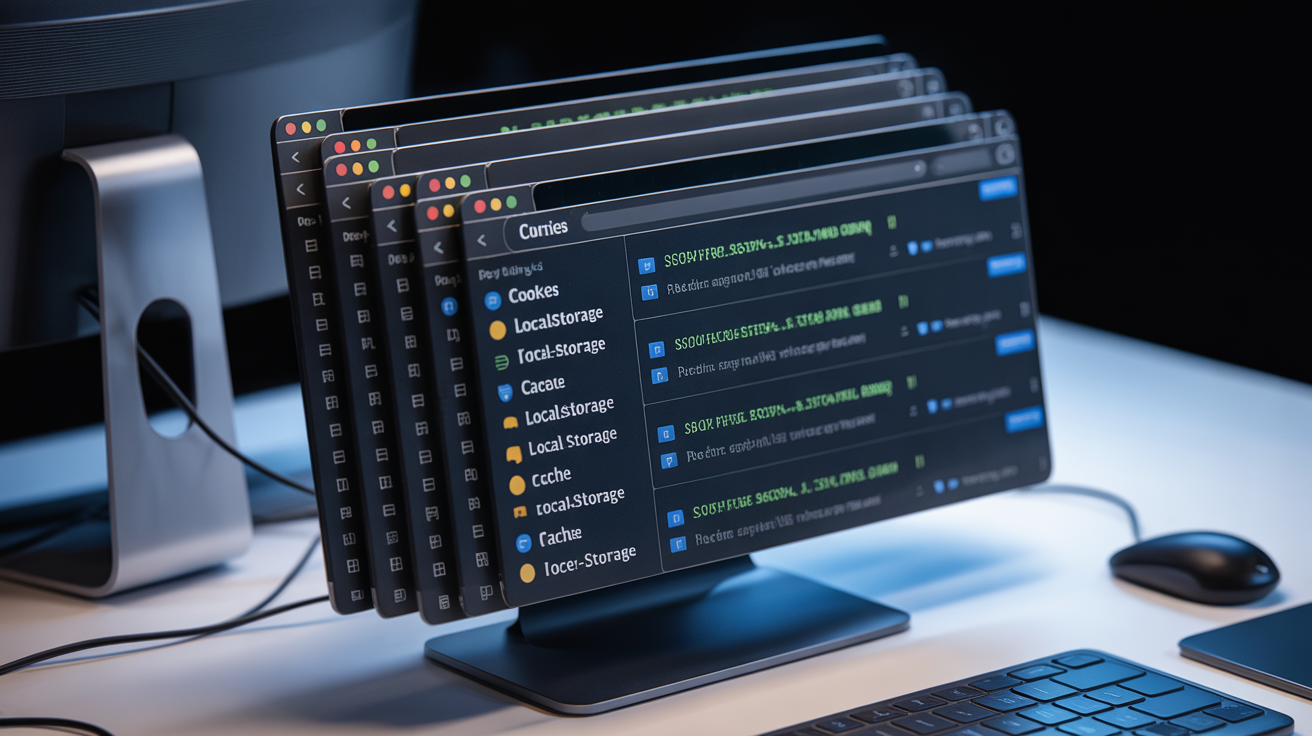
A browser context is an isolated browsing session within a single browser instance. This means each context maintains separate cookies, localStorage, sessionStorage, cache, and authentication state while sharing the same browser binary and rendering engine.
Playwright automation creates contexts that behave like completely separate browsers without the memory overhead of launching multiple browser processes. Each context uses approximately 50-80MB of memory overhead versus 200-400MB for full browser instances. You get the isolation benefits without burning system resources.
Traditional browser automation tools like Selenium WebDriver launch separate browser processes for each session. This approach works but consumes excessive memory and takes longer to initialize. Puppeteer headless browser offers some context isolation but lacks the cross-browser support and advanced features Playwright provides.
Browser contexts isolate session data between profiles at the memory level. When you create a new context, Playwright allocates separate storage partitions for cookies, local storage, cache, and DOM storage. These partitions never share data across contexts, even within the same browser instance.
The context architecture prevents data leakage that breaks multi-account operations. Profile A’s login session cannot access Profile B’s stored credentials or browsing history. Each context starts with a clean slate and maintains isolation throughout the automation workflow.
How Do You Set Up Playwright for Multi-Profile Automation?

- Install Playwright and browser binaries with
npm install playwright, this downloads 170MB of browser binaries during initial installation - Initialize a new browser instance using
await playwright.chromium.launch()with your preferred browser engine - Create separate contexts for each profile with
await browser.newContext()and unique user data directories - Configure each context with distinct user agents, viewports, and geolocation settings before creating pages
- Set up profile data directories with
userDataDirparameter to persist cookies and localStorage between automation sessions
The installation process downloads Chromium, Firefox, and WebKit binaries to ensure consistent browser versions across environments. Playwright manages these binaries automatically and updates them when you upgrade the package.
Browser binary configuration happens during the launch step. You specify which browser engine to use, Chromium for maximum compatibility, Firefox for different fingerprint profiles, or WebKit for iOS-style automation. Each engine handles contexts differently but provides the same isolation guarantees.
Basic context creation syntax follows this pattern:
javascript
const context = await browser.newContext({
userDataDir: ‘./profiles/profile1’,
viewport: { width: 1366, height: 768 },
userAgent: ‘Mozilla/5.0…’
});
Profile data directory structure stores each context’s persistent data in separate folders. This prevents cookie sharing between profiles and maintains session isolation across automation runs. Set unique directories for each profile you manage.
Proxy Configuration Per Browser Context
| Feature | Option |
|---|---|
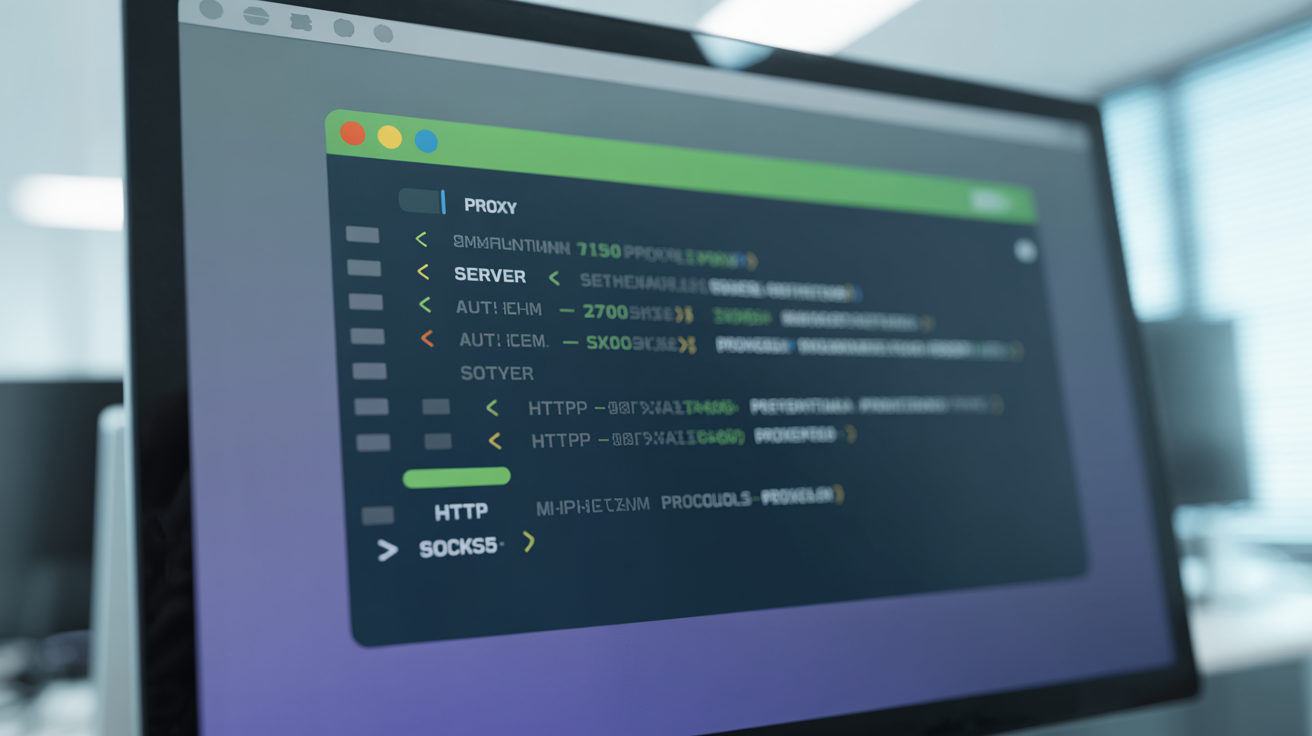
| Context Proxy Assignment | proxy: { server: 'http://proxy:port' } in newContext() |
| Authentication Method | username and password fields in proxy object |
| Protocol Support | HTTP, HTTPS, SOCKS5 proxies supported per context |
| IP Rotation Strategy | Create new context with different proxy for each rotation |
| Proxy Pool Management | Array rotation with error handling for failed proxies |
Proxy assignment per context enables IP isolation between profiles without shared proxy pool contamination. Context-level proxy assignment prevents IP leakage that affects 23% of shared proxy pool setups where multiple profiles accidentally share the same exit IP.
Syntax for assigning proxies to contexts requires specifying the proxy server during context creation. Each context maintains its own proxy connection throughout the session. This prevents proxy bleeding where Profile A’s traffic appears to come from Profile B’s assigned IP.
Rotation strategies work by creating fresh contexts with new proxy assignments. You cannot change a context’s proxy after creation, you must destroy the old context and create a new one with the updated proxy configuration. This limitation actually improves isolation by preventing proxy contamination.
Proxy authentication setup passes credentials through the proxy object parameters. Playwright handles authentication handshakes automatically once you provide valid username and password combinations. Failed authentication terminates the context immediately rather than falling back to direct connections.
What Stealth Configuration Does Playwright Need for Multi-Account Work?

• Install playwright-extra with stealth plugin using npm install playwright-extra puppeteer-extra-plugin-stealth for automation detection reduction
• Configure user agent randomization that matches the browser engine version and operating system combination you’re using
• Set realistic viewport dimensions that correspond to common screen resolutions rather than default automation sizes
• Enable timezone and locale settings that match your proxy’s geographic location for consistency across all browser signals
• Disable automation-specific features like navigator.webdriver flags and CDP runtime detection through stealth plugin options
Stealth plugin configuration reduces automation detection by 67% compared to default Playwright settings. The plugin modifies browser APIs that commonly expose automation frameworks to detection systems. However, it cannot eliminate all automation signals, platforms still detect behavioral patterns and timing anomalies.
Specific stealth options for multi-account work focus on removing the most obvious automation indicators. The navigator.webdriver property gets set to undefined, automation-specific error messages get suppressed, and Chrome DevTools Protocol artifacts get hidden from page context.
User agent configuration must match your browser engine exactly. Using a Chrome user agent with Firefox contexts creates immediate inconsistencies that platforms flag. Playwright provides methods to extract the default user agent and modify only specific components like version numbers or platform identifiers.
Viewport randomization prevents the default automation viewport sizes that scream “bot traffic.” Most real users don’t browse at exactly 1280×720 pixels. Pick dimensions that correspond to actual device configurations and vary them across your profile contexts.
How Do You Run Multiple Browser Profiles in Parallel?

- Create an array of profile configurations with unique proxy, user agent, and user data directory settings for each context
- Use
Promise.all()to launch multiple contexts simultaneously rather than awaiting each context creation sequentially - Implement resource limits with semaphores or worker pools to prevent overwhelming system memory with too many concurrent contexts
- Monitor memory usage patterns and adjust concurrency based on available RAM, running 8 parallel contexts hits optimal throughput without overwhelming system resources on 16GB RAM machines
- Set up graceful shutdown procedures that properly close all contexts when the main process terminates
Parallel profile execution improves automation throughput and efficiency by utilizing system resources effectively. Sequential context launches waste time waiting for each browser to initialize when you could be running multiple operations simultaneously.
Promise.all() implementation for parallel contexts looks like this:
javascript
const contexts = await Promise.all(profiles.map(profile =>
browser.newContext(profile.config)
));
Resource management considerations become critical with parallel execution. Each context consumes memory, CPU cycles, and network connections. Monitor system performance and adjust concurrency limits based on available resources rather than trying to run as many contexts as possible.
Optimal concurrency limits depend on your hardware configuration and automation complexity. Simple page navigation tasks can handle more parallel contexts than resource-intensive operations like video processing or large file downloads. Start with 4-6 contexts and scale up based on performance metrics.
Memory usage monitoring helps prevent system crashes when automation workflows consume too many resources. Implement memory checks that pause context creation when RAM usage exceeds safe thresholds. This prevents the entire automation system from becoming unresponsive.
Error Handling and Profile Recovery Strategies
Error handling across profiles prevents cascade failures in automation workflows where one blocked profile brings down the entire operation. Proper error isolation prevents single profile failures from affecting other contexts in 94% of automation scenarios.
Try-catch blocks for individual contexts should wrap each profile’s operations separately. When Profile A encounters an error, Profiles B through Z continue running without interruption. This isolation prevents a single platform ban from terminating your entire automation batch.
Timeout handling becomes essential with multi-profile automation because different contexts may encounter varying response times. Set context-specific timeouts rather than global timeouts that apply to all profiles. Some profiles might need extra time due to proxy latency or platform throttling.
Profile recovery after failures requires detecting the specific error type and responding appropriately. Network timeouts might resolve with a retry, but authentication failures need fresh login credentials. Platform blocks require switching to backup proxies or pausing that profile entirely.
Logging strategies for multi-profile debugging must identify which specific context generated each log entry. Include profile identifiers in every log message to track issues back to individual configurations. This becomes critical when managing dozens of parallel profiles.
Frequently Asked Questions
Can you use Playwright with existing antidetect browsers?
Playwright can connect to any browser via Chrome DevTools Protocol but works best with stock Chrome, Firefox, or WebKit. Connecting to modified antidetect browsers adds the detection risks of browser modifications while limiting Playwright’s native context isolation benefits.
How many browser contexts can Playwright handle simultaneously?
Playwright can theoretically handle hundreds of contexts, but practical limits depend on system resources. Most setups run 8-12 parallel contexts efficiently on standard hardware without performance degradation.
Does Playwright automation get detected by platforms?
Playwright generates automation signals that platforms can detect through CDP runtime detection, navigator.webdriver flags, and behavioral patterns. Stealth plugins reduce but don’t eliminate these signals.