
HTTP2 SETTINGS fingerprinting happens at the protocol layer, where platforms harvest browser signatures from connection parameters before any page content loads. Platforms fingerprint your browser through HTTP/2 SETTINGS frames and QUIC connection parameters before TLS handshakes complete. These signals bypass every spoofing technique because they operate below JavaScript execution.
Key Takeaways:
- HTTP/2 SETTINGS frames contain 6 configuration values that create unique per-browser signatures
- QUIC protocol uses connection migration patterns that differ across browser implementations
- Protocol-level fingerprinting happens before JavaScript execution and cannot be spoofed by extensions
What Are HTTP/2 SETTINGS Frames and How Do They Fingerprint Browsers?
HTTP/2 SETTINGS frames are protocol control messages that browsers send during connection establishment to negotiate communication parameters. This means every browser reveals its identity through these configuration values before loading any page content.
Browser fingerprinting through SETTINGS frame analysis works by capturing the specific parameter values each browser implementation sends. Chrome sends different SETTINGS_MAX_CONCURRENT_STREAMS values than Firefox. Safari uses different SETTINGS_INITIAL_WINDOW_SIZE defaults than Edge. These differences create unique signatures that detection systems harvest.
The fingerprinting happens immediately after TLS handshake completion. Your browser negotiates HTTP/2 support, then transmits a SETTINGS frame containing 6 standard parameters plus any browser-specific extensions. Platforms record this combination and match it against known browser profiles.
Detection systems collect these signatures within milliseconds of connection establishment. The SETTINGS frame exchange occurs before HTML parsing, before JavaScript execution, before any traditional fingerprinting methods can engage. You cannot spoof protocol-level behavior with extensions or user script modifications because the exchange happens at the transport layer.
6 standard SETTINGS parameters plus browser-specific extensions create unique combinations that identify not just browser type but often the exact version and build number.
HTTP/2 SETTINGS Parameter Values: What Each Browser Sends by Default
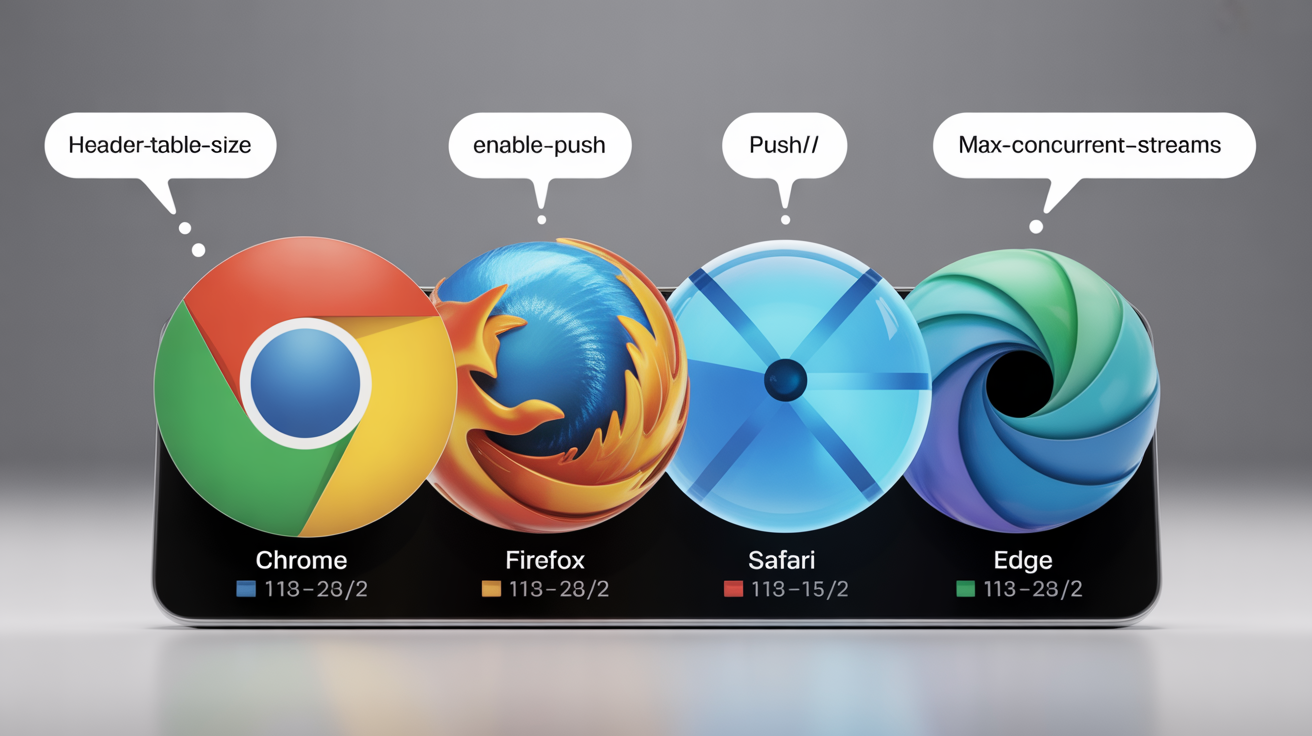
Each browser implementation sends different default values for HTTP/2 SETTINGS parameters, creating distinctive protocol signatures that platforms use for identification.
| SETTINGS Parameter | Chrome Default | Firefox Default | Safari Default | Edge Default |
|---|---|---|---|---|
| HEADER_TABLE_SIZE | 65536 | 65536 | 4096 | 65536 |
| ENABLE_PUSH | 1 | 0 | 1 | 1 |
| MAX_CONCURRENT_STREAMS | 1000 | 200 | 100 | 1000 |
| INITIAL_WINDOW_SIZE | 6291456 | 131072 | 2097152 | 6291456 |
| MAX_FRAME_SIZE | 16777215 | 16384 | 16384 | 16777215 |
| MAX_HEADER_LIST_SIZE | Unset | 262144 | Unset | Unset |
Browser implementations send different SETTINGS_HEADER_TABLE_SIZE values based on their HTTP/2 optimization strategies. Chrome and Edge both default to 65536 bytes for header compression tables, while Safari restricts this to 4096 bytes for memory efficiency. Firefox matches Chrome’s table size but differs significantly in concurrent stream limits.
The SETTINGS_ENABLE_PUSH parameter reveals clear browser policy differences. Firefox disables HTTP/2 server push by default (value 0) due to performance concerns. Chrome, Safari, and Edge enable it (value 1), but their implementation details create secondary fingerprinting signals through push promise handling.
MAX_CONCURRENT_STREAMS shows the most dramatic variation. Safari limits concurrent streams to 100 for mobile compatibility. Firefox allows 200 streams. Chrome and Edge permit 1000 concurrent streams, but Edge adds proprietary stream management extensions that modify the effective behavior.
Chrome sends SETTINGS_HEADER_TABLE_SIZE 65536 while Firefox sends 65536 but with different MAX_CONCURRENT_STREAMS values that create unique browser signatures when combined.
How Does QUIC Protocol Fingerprinting Work?
QUIC protocol fingerprinting analyzes UDP-based connection behavior that varies between browser implementations, creating additional identification vectors beyond HTTP/2 analysis.
QUIC connection migration behavior differs significantly between browsers. Chrome implements aggressive connection migration, switching between network paths when WiFi signal degrades or cellular connectivity improves. Firefox uses conservative migration policies that maintain connections longer on the original path. Safari optimizes for battery life, delaying migration until connection quality drops below specific thresholds.
Connection ID generation patterns provide another fingerprinting vector. Each browser uses different algorithms for creating QUIC connection identifiers. Chrome generates 8-byte connection IDs using cryptographically secure random number generation. Firefox uses 4-byte IDs with timestamp-based seeding. Edge implements Microsoft’s proprietary connection ID format that includes encrypted metadata.
UDP packet fragmentation handling creates detectable behavioral signatures. Chrome fragments large QUIC packets at 1200 bytes to optimize for diverse network conditions. Safari fragments at 1024 bytes for iOS compatibility. Firefox uses adaptive fragmentation based on path MTU discovery results.
The 0-RTT (zero round-trip time) resumption implementation differs across browsers. Chrome supports 0-RTT for all HTTPS connections with previous session tickets. Safari restricts 0-RTT to specific domain patterns for security reasons. Firefox requires explicit user configuration to enable 0-RTT resumption.
QUIC connection migration timeout values range from 15-30 seconds depending on browser implementation, with Chrome using the most aggressive timeouts for performance optimization.
What Protocol Fingerprints Do Detection Systems Actually Collect?
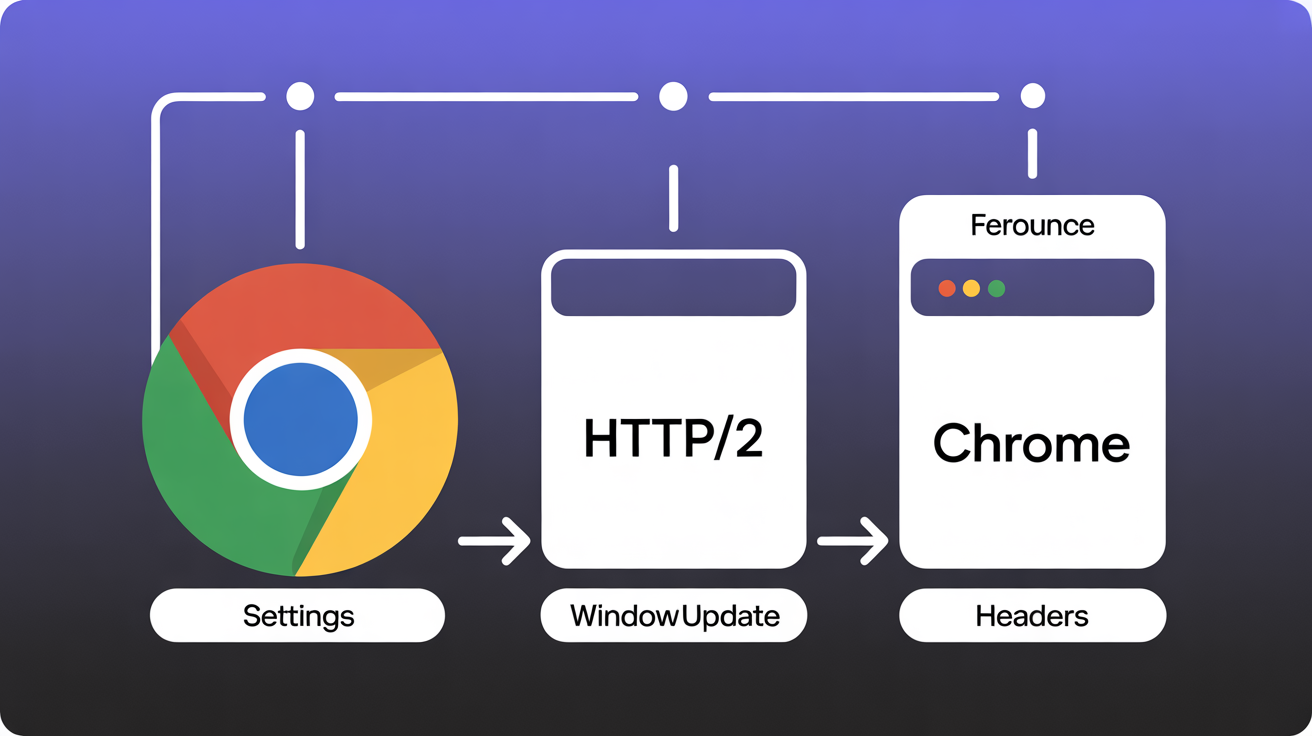
Detection systems harvest multiple protocol-level signals that combine into comprehensive browser identification profiles before JavaScript execution begins.
HTTP/2 frame ordering patterns reveal browser networking stack implementations. Chrome sends SETTINGS, WINDOW_UPDATE, then HEADERS frames in a specific sequence. Firefox reorders these frames based on connection state priorities.
TLS cipher suite preferences show browser security policy differences. Chrome prefers AES-GCM ciphers while Safari prioritizes ChaCha20 on mobile devices for better battery performance.
TCP congestion control algorithms differ between operating system networking stacks. Windows browsers use Compound TCP by default. macOS browsers implement Cubic congestion control. Linux browsers vary by distribution.
HTTP/2 stream dependency graphs create unique browser signatures. Chrome builds dependency trees optimizing for perceived page load speed. Firefox structures dependencies based on content type priority.
QUIC version negotiation sequences identify browser QUIC implementation versions. Chrome supports QUIC versions 1, 46, 50. Firefox implements versions 1, 29. Safari uses versions 1, 39.
Connection coalescing behavior varies between browsers for the same origin. Chrome aggressively reuses connections across subdomains. Firefox requires explicit connection sharing configuration.
Protocol upgrade negotiation timing reveals browser HTTP/2 support implementation. Some browsers negotiate HTTP/2 during TLS handshake. Others upgrade after initial HTTP/1.1 exchange.
Keep-alive parameter combinations show browser connection management policies. Default timeout values, maximum request limits, and connection pooling strategies create unique signatures.
Akamai Bot Manager analyzes 15+ HTTP/2 protocol characteristics for browser classification, combining frame timing, parameter values, and behavioral patterns into composite fingerprints.
Why Can’t Modified Browsers Spoof Protocol-Level Fingerprints?
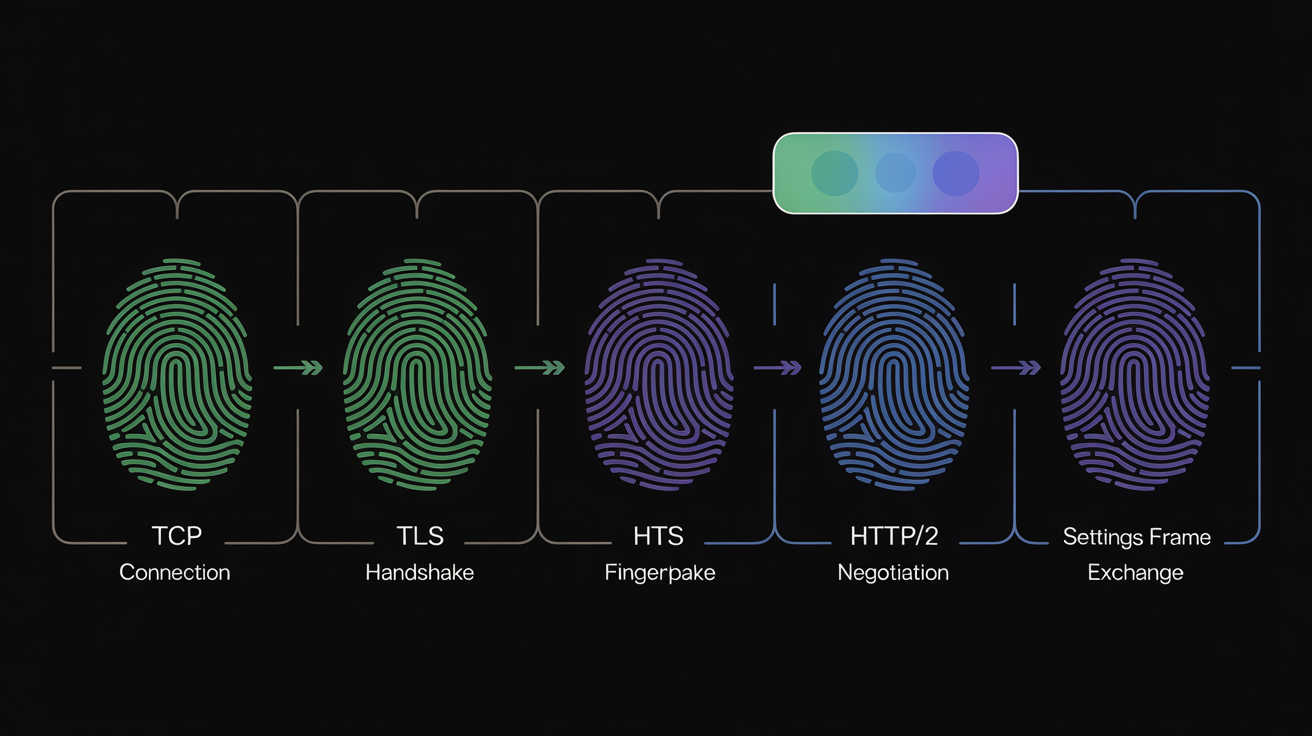
Protocol fingerprinting occurs before JavaScript execution, making it impossible for browser modifications or extensions to intercept and alter the identifying signals.
The sequence of operations explains why spoofing fails. TCP connection establishment happens first. TLS handshake negotiation follows immediately. HTTP/2 protocol negotiation and SETTINGS frame exchange occur next. Only after this protocol-level negotiation completes does the browser parse HTML and execute JavaScript code where traditional fingerprinting spoofing operates.
Modified browsers face fundamental architectural constraints. HTTP/2 SETTINGS frame generation happens in the browser’s networking layer, compiled into the binary executable. Extensions and JavaScript modifications operate at the content layer, which loads after protocol negotiation completes. You cannot modify what has already been transmitted.
Browser fingerprinting spoofing extensions work by overriding JavaScript APIs like Canvas getImageData() or WebGL getParameter(). These APIs become available only after the browser establishes the HTTP/2 connection, parses the HTML document, and initializes the JavaScript runtime environment. Protocol signatures have already been captured and analyzed by this point.
JA3 fingerprint hash generation demonstrates this timing problem. JA3 hashes are calculated from TLS handshake parameters during connection establishment. The handshake signature includes cipher suites, extensions, and elliptic curves that the browser networking stack selects. JavaScript fingerprinting spoofing cannot alter TLS handshake behavior because JavaScript execution begins after TLS negotiation completes.
HTTP/2 SETTINGS frame exchange happens within 50ms of TLS handshake completion, leaving no opportunity for runtime modification of the transmitted parameters.
How Do You Test Your Browser’s Protocol Fingerprint?

Testing your browser’s protocol fingerprint requires capturing network traffic during connection establishment to analyze HTTP/2 SETTINGS frames and QUIC parameters.
Install Wireshark network analyzer on your system and configure it to capture localhost traffic. Enable HTTP/2 and QUIC protocol dissectors in the analysis preferences. Start packet capture before opening your browser.
Navigate to an HTTP/2-enabled website like Google, Facebook, or Cloudflare. Clear your browser cache first to force fresh connection establishment. Wireshark will capture the complete protocol negotiation sequence.
Filter captured packets by HTTP/2 protocol using the display filter “http2.type == 4” to show only SETTINGS frames. Look for the SETTINGS frame your browser sent immediately after TLS handshake completion.
Analyze SETTINGS frame parameters in Wireshark’s packet details panel. Record the values for HEADER_TABLE_SIZE, MAX_CONCURRENT_STREAMS, INITIAL_WINDOW_SIZE, and other parameters your browser transmitted.
Use online HTTP/2 testing tools like HTTP/2 Test by KeyCDN or Geekflare’s HTTP/2 Checker. These services capture and display your browser’s protocol fingerprint without requiring local packet capture setup.
Compare your fingerprint against known browser signatures using databases like JA3er or TLS Fingerprint API services. Input your captured parameters to identify how unique your browser signature appears to detection systems.
Test QUIC protocol fingerprinting by visiting QUIC-enabled sites like Google services while capturing UDP traffic on port 443. Analyze QUIC connection establishment frames for protocol version, connection ID format, and migration behavior patterns.
Protocol testing tools reveal HTTP/2 SETTINGS frame values within the first few packets of any HTTPS connection, showing exactly what identification data your browser transmits.
Frequently Asked Questions
Can VPNs or proxies hide HTTP/2 SETTINGS fingerprints?
No. HTTP/2 SETTINGS frames are generated by your browser software and transmitted through any proxy or VPN unchanged. Protocol fingerprinting analyzes browser behavior, not network routing. The proxy server forwards your browser’s SETTINGS frame values to the destination server without modification.
Do incognito mode or private browsing affect HTTP/2 fingerprints?
Incognito mode does not change HTTP/2 SETTINGS frame parameters. These protocol-level configurations are built into browser binaries and remain identical across normal and private browsing sessions. Private browsing affects cookies and local storage, not networking stack behavior.
Which browsers have the most unique HTTP/2 fingerprints?
Safari and Edge create the most distinctive HTTP/2 fingerprints due to non-standard SETTINGS parameter combinations. Chrome and Chromium-based browsers share similar signatures but differ in minor parameter values. Firefox provides moderate uniqueness through its conservative SETTINGS defaults and disabled server push configuration.